Black Friday Digital Signage: Countdown, Deals & QR Promo Code
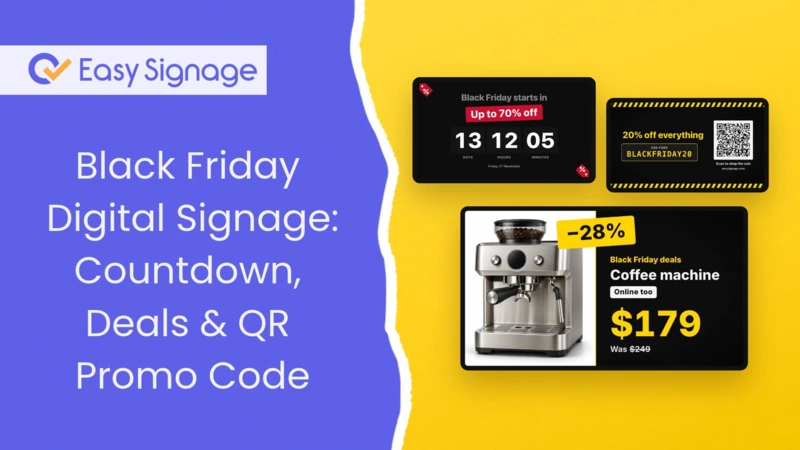
Black Friday 2026 is on Friday 27 November, and Cyber Monday follows on 30 November. If you have screens in your store, three EasySignage apps cover most of what a Black Friday sign needs to do:
Black Friday Countdown builds anticipation before the sale, then counts down to the end of it.
Black Friday Deals shows your products with old and new prices, and works out the saving for you.
Black Friday Promo Code gives shoppers who leave empty-handed a code to type at checkout and a QR code that takes them straight to your online sale.
You don’t need a designer for any of them. You type the offer, the prices or the code, pick a theme, and publish.
The rest of this post follows one example store through the whole sale so you can see where each app fits, when to switch it on, and the settings that make the difference.
The Example: A Homewares Store with Three Screens
To keep this concrete, picture Harbour Home, a small homewares store. Harbour Home is an illustrative example, not a real customer, but the screens and settings are the ones you would use.
Harbour Home has three screens:
- A window screen facing the street.
- An aisle screen next to the kitchen appliances.
- A counter screen beside the checkout.
The owner wants three things from Black Friday: people walking past should know the sale is coming, shoppers inside should see the best deals without asking, and anyone who leaves without buying should still be able to shop the sale online. That maps neatly onto the three apps.
| Screen | App | Job on the screen | When it plays |
|---|---|---|---|
| Window | Black Friday Countdown | Tell passers-by the sale is coming, then that it ends soon | From three weeks before until the sale ends |
| Aisle | Black Friday Deals | Show the deals with photos, prices and savings | Sale days only |
| Counter | Black Friday Promo Code | Give shoppers a code and a QR code for the online sale | Sale days only |
Three Weeks Out: Put a Black Friday Countdown in the Window
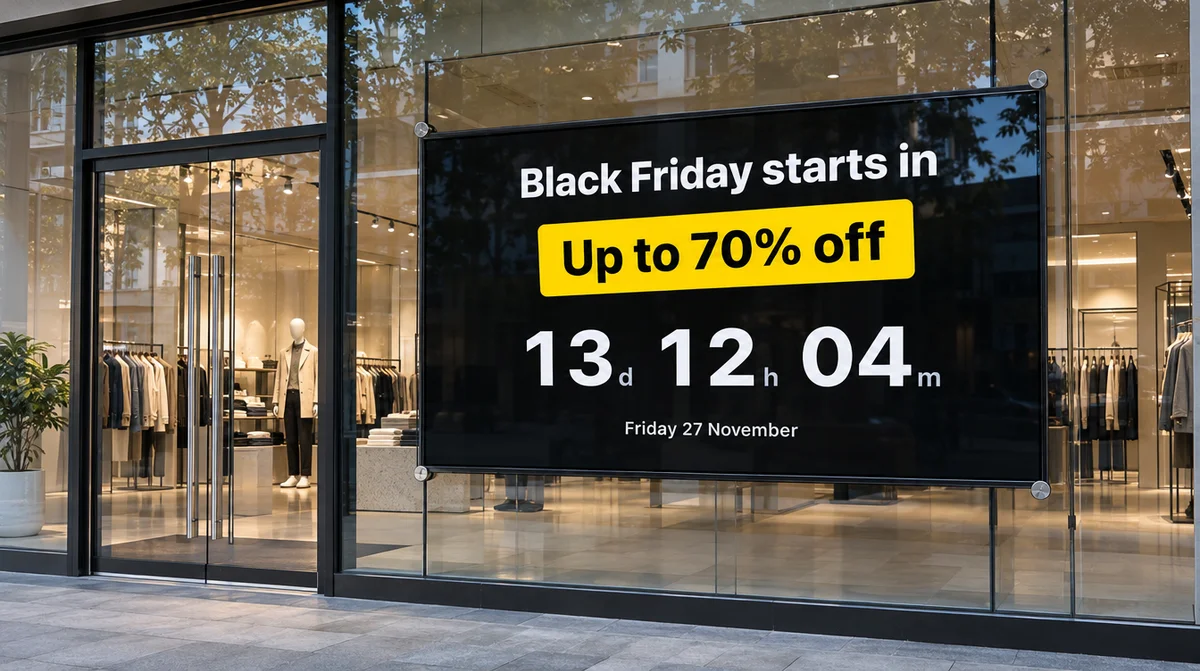
A countdown is a cost-effective way to create urgency in a shop window. It gives customers a date to remember and a reason to come back.
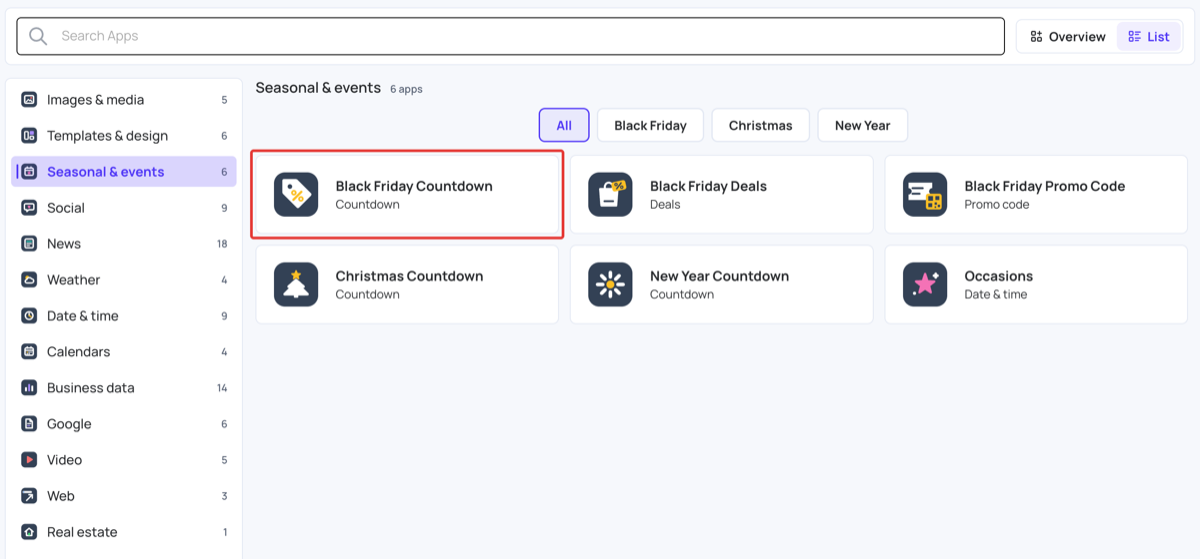
Harbour Home adds the Black Friday Countdown app to the window screen’s playlist in early November. To add it, open the playlist, click the layer, and search for Black Friday Countdown in Search Apps. The setup pages walk through every setting, and each one already has a sensible default.
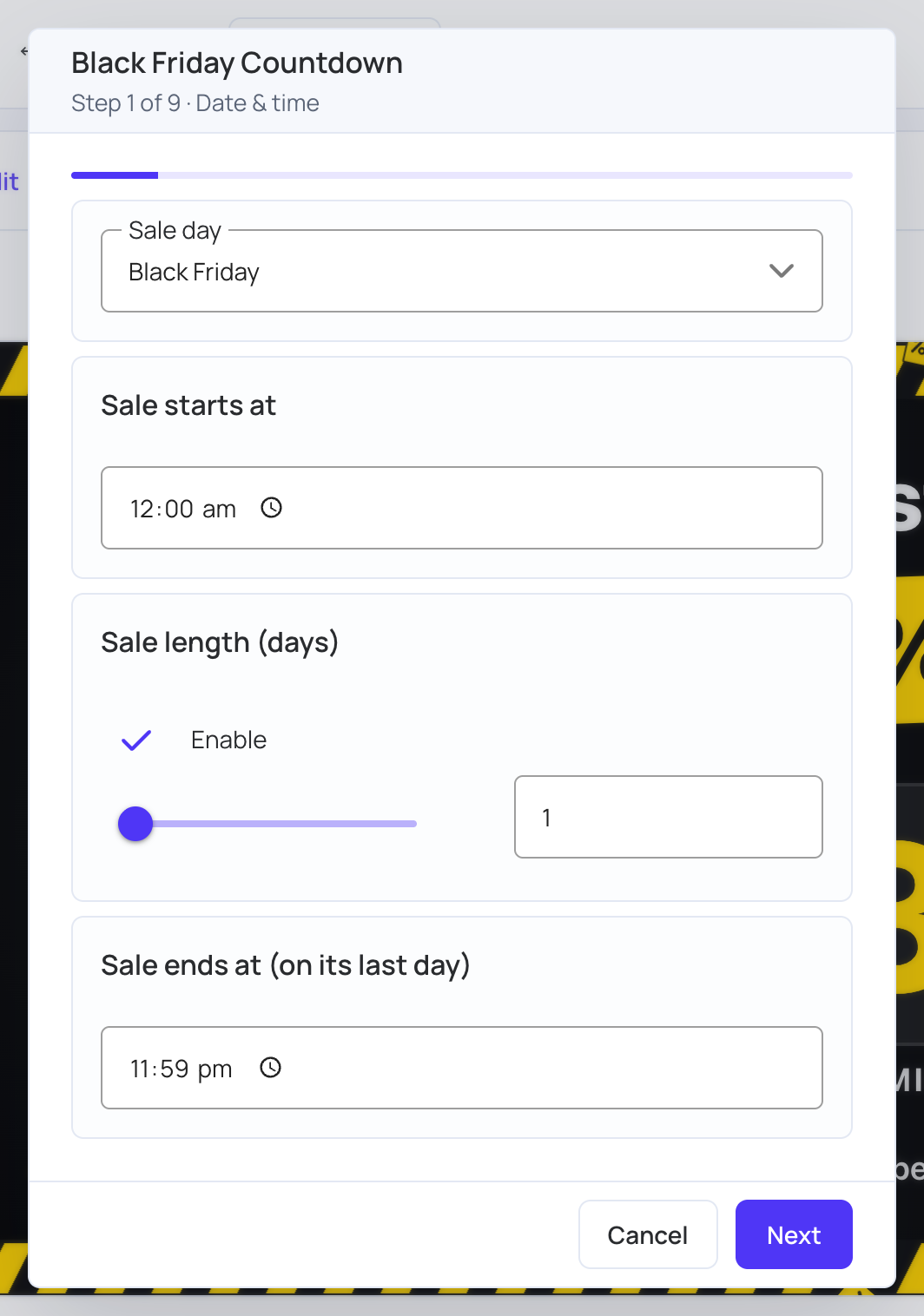
The owner doesn’t type a date: Black Friday moves every year, and the app calculates it. On the Date & time page the owner sets:
- Sale day: Black Friday.
- Sale starts at: 9:00, when the doors open.
- Sale length (days): 4, so the sale runs from Friday through Cyber Monday.
- Sale ends at (on its last day): 21:00 on Monday.
On the Text page, the Offer line reads “Up to 50% off”. That one line matters more than any animation: a countdown with nothing to count down to is just a clock.
A few settings worth knowing on the window screen:
Show weeks counts in weeks as well as days, which reads better while the sale is still weeks away.
Highlight changes how the timer looks as the sale gets close: from 24 hours out, in the final hour, and for the last 60 seconds.
Theme: Black & yellow is the classic Black Friday look. Clean works better in a bright window in the afternoon sun.
Time zone: The screen’s time zone if your stores are in different cities and each opens at 9:00 local time. A fixed time zone if every screen should count to the same moment, for example an online launch.
Black Friday Morning: The Countdown Flips on its Own
At 9:00 a.m. on Friday nobody at Harbour Home touches the window screen. The countdown switches to Headline during the sale and starts counting down to the end of the sale on Monday night. The message changes from “it’s coming” to “it ends soon”, which is the message you want for the whole weekend.
When the timer reaches zero, the At zero setting decides what happens. Harbour Home picks Show the message, with a short thank-you as the Message at zero. After the hours set in Hours after the sale before next year’s countdown, the app starts counting to next year’s Black Friday.
That last part is handy if you run more than one sale. The same app can count down to Cyber Monday, Singles’ Day (11 November) or Boxing Day (26 December) instead, and you can leave it in a playlist all year.
Sale Days: a Black Friday Deals Board in the Aisle
Inside the store, shoppers want prices. Printed sale signs go out of date the moment a product sells out or a price changes. The Black Friday Deals app replaces them with a deals board you edit from the dashboard.
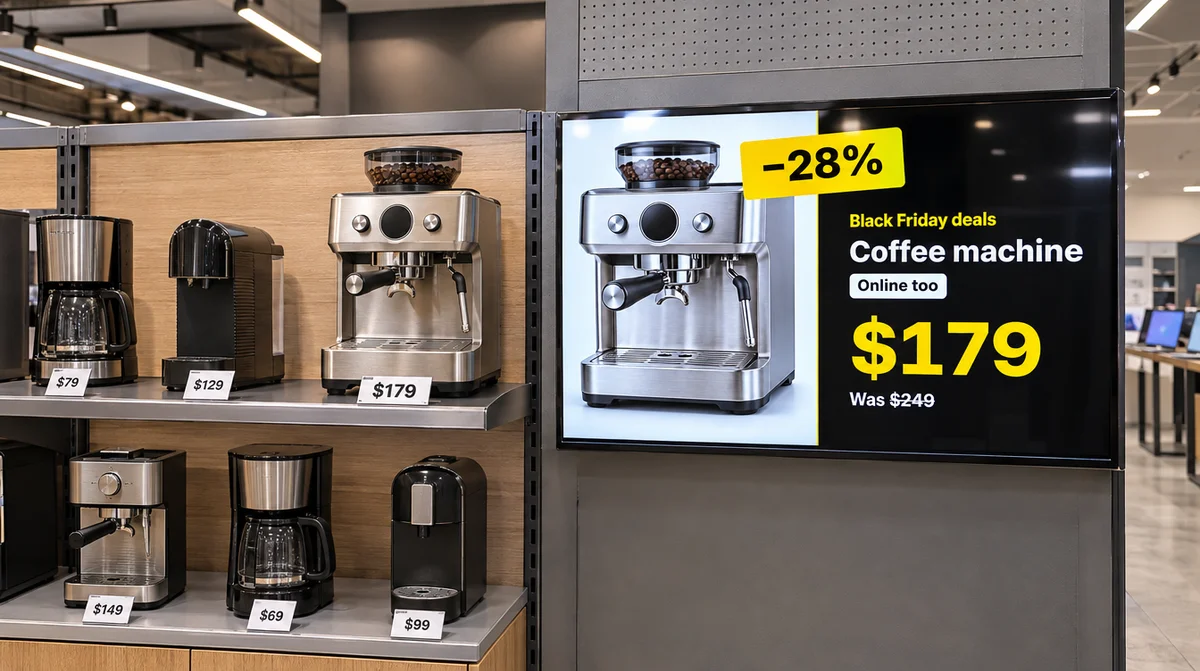
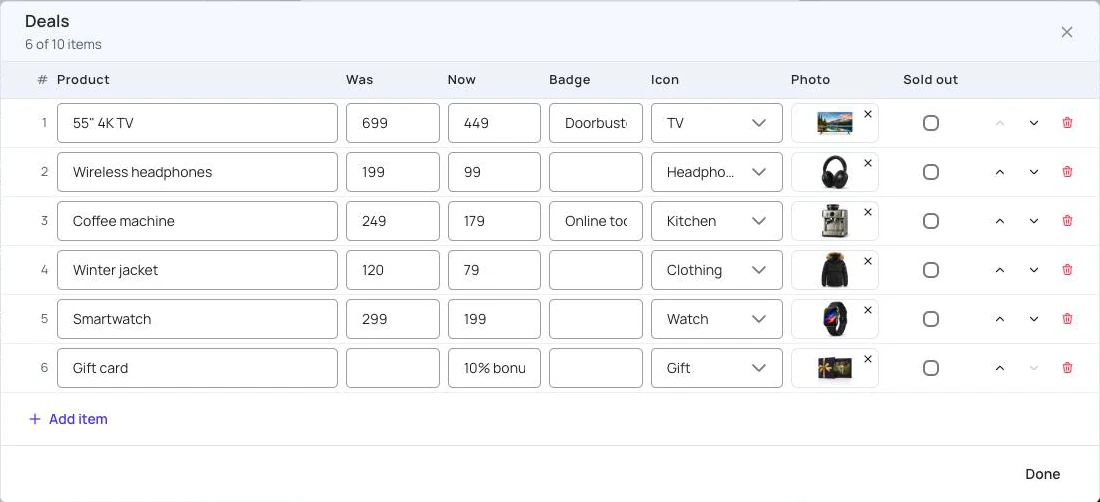
Harbour Home adds the app to the aisle screen and opens the deals list. For each product the owner types:
- Product: “Espresso machine”.
- Was: 449.
- Now: 299.
- Badge: “Doorbuster”.
- Photo: a product photo from Media Assets.
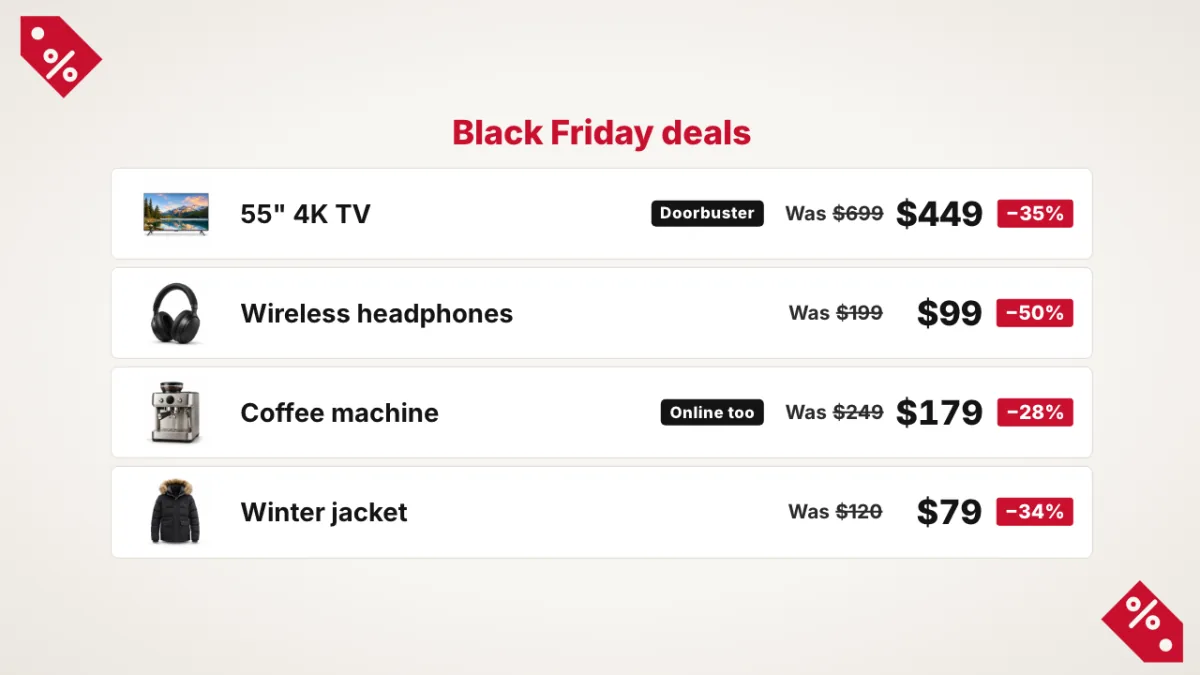
The app works out the saving and shows it as “−33%”, “Save $150” or both, depending on the Saving setting. Percentages round down: $300 down to $199 is a 33.7% saving, so the screen shows −33%, not −34%. You can add up to 10 deals, and the app starts with six sample deals so you can see the layout before you type your own.
Pick a display mode for the screen’s location
The Show setting decides how the deals play. Choose it by how long people look at the screen:
One deal at a time suits screens people walk past, because they only glance at them. One deal fills the screen with the new price at its largest, and the next deal appears after the number of seconds you set in Seconds per deal or page, from 3 to 20.
A list of deals suits a counter or department screen where people stand and read. Several deals share one page, so shoppers can compare them without waiting for the screen to change.
Deal of the hour suits a doorbuster plan. Each hour of the day gets its own deal, and the screen shows the time left until the next one, which gives shoppers a reason to come back later. The deal changes by the screen’s clock, so screens that play the same playlist show the same deal.
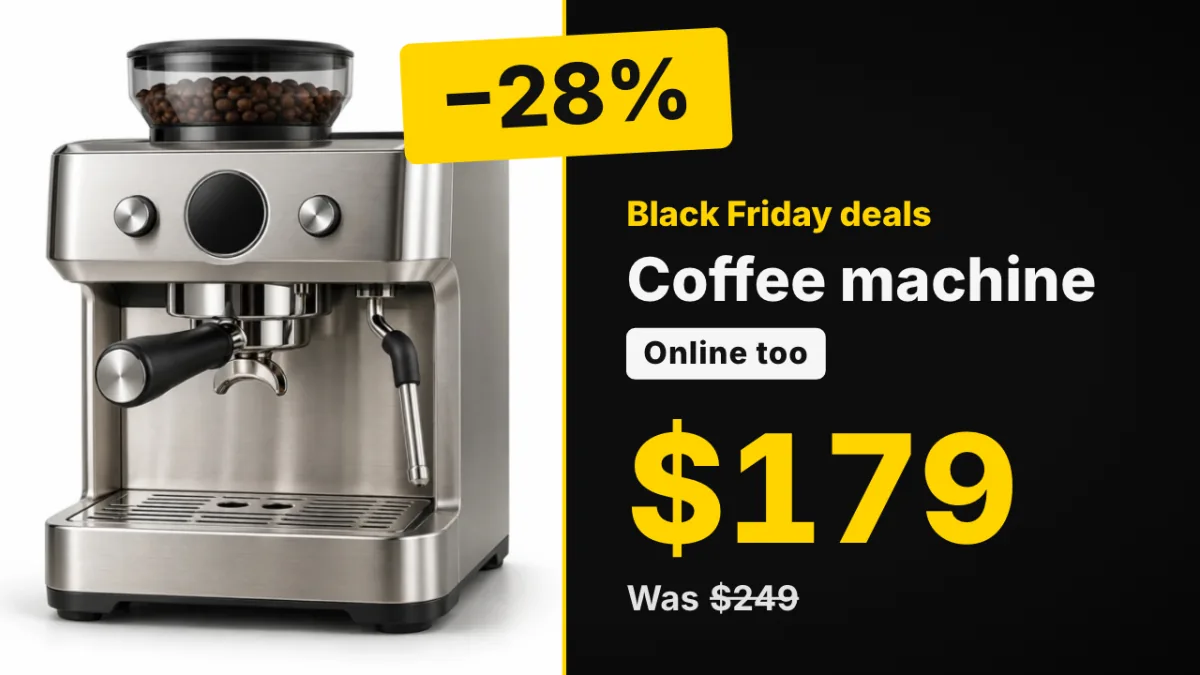
Harbour Home uses One deal at a time with the Split photo layout on the aisle screen. For products shot on a white background, the Framed layout shows the whole photo without cropping. The Band layout puts the photo across the top and the price in a strip below.
When something sells out
On Saturday afternoon the espresso machine sells out. The owner opens the item, turns on Sold out for that deal and publishes. The saving sticker on the aisle screen changes to “Sold out”, so nobody walks over looking for a machine that’s gone. Turn on Hide sold-out deals if you would rather the product disappear from the rotation altogether.
A note for stores in the EU: the price you compare against has to be the lowest you charged in the 30 days before the discount. The app can’t check this for you. To change the word “Was” on screen, edit Old price label in the advanced settings, for example to “Lowest 30-day price”.
In Australia, a “was” price must be a price the product genuinely sold at for a reasonable period immediately before the sale (ACCC guidance).
At The Counter: a Promo Code with a QR Code
Not everyone buys on the spot. Some people want to check a size, ask a partner, or buy something too big to carry. The Black Friday Promo Code app gives them a way to finish the purchase online, and tells you which screen sent them.
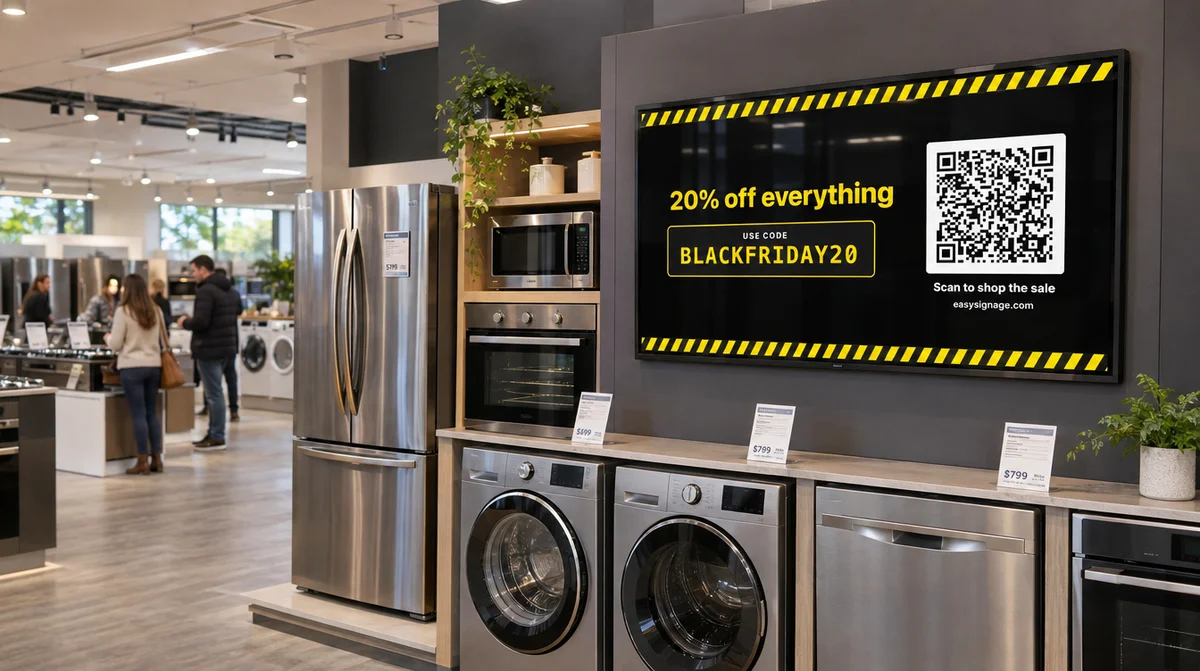
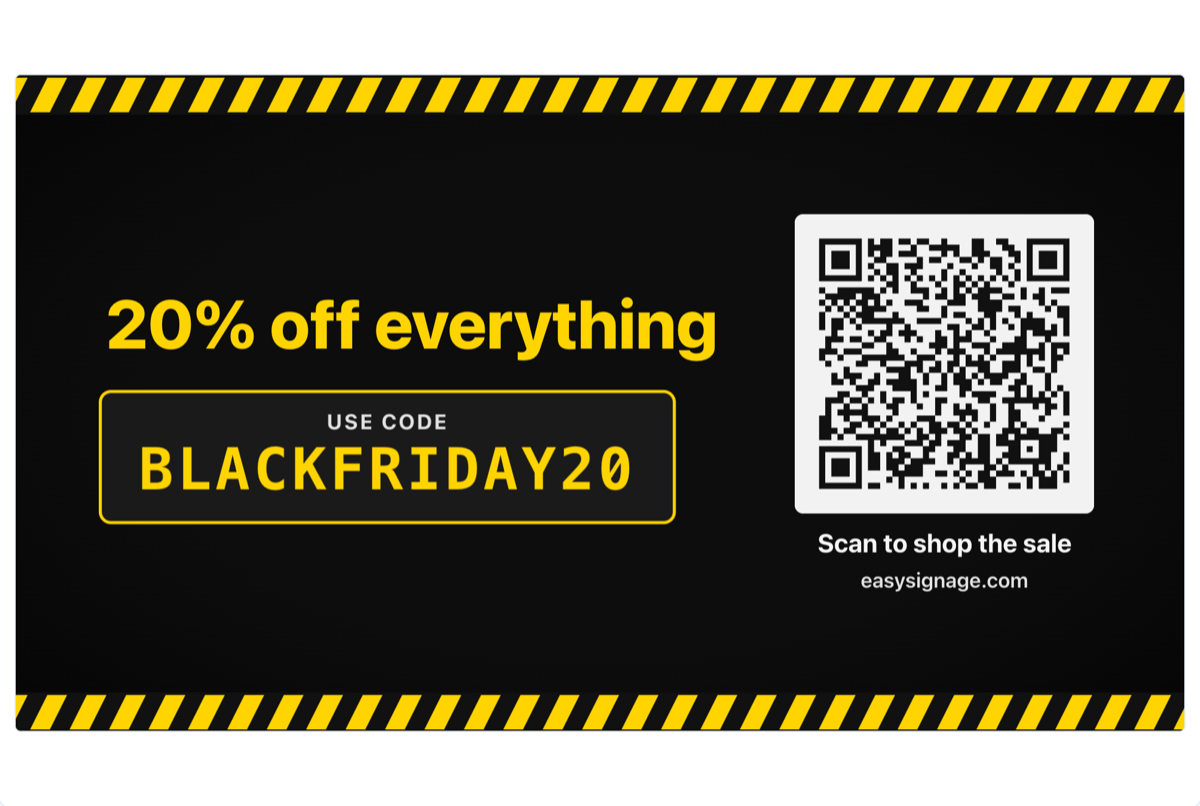
On the Offer & code page, Harbour Home types:
- Offer: “20% off everything online”. Seven words or fewer works best, because a shopper at the till looks up for a moment, not a minute.
- Promo code: “BLACKFRIDAY20”. The app shows it in large upper-case letters.
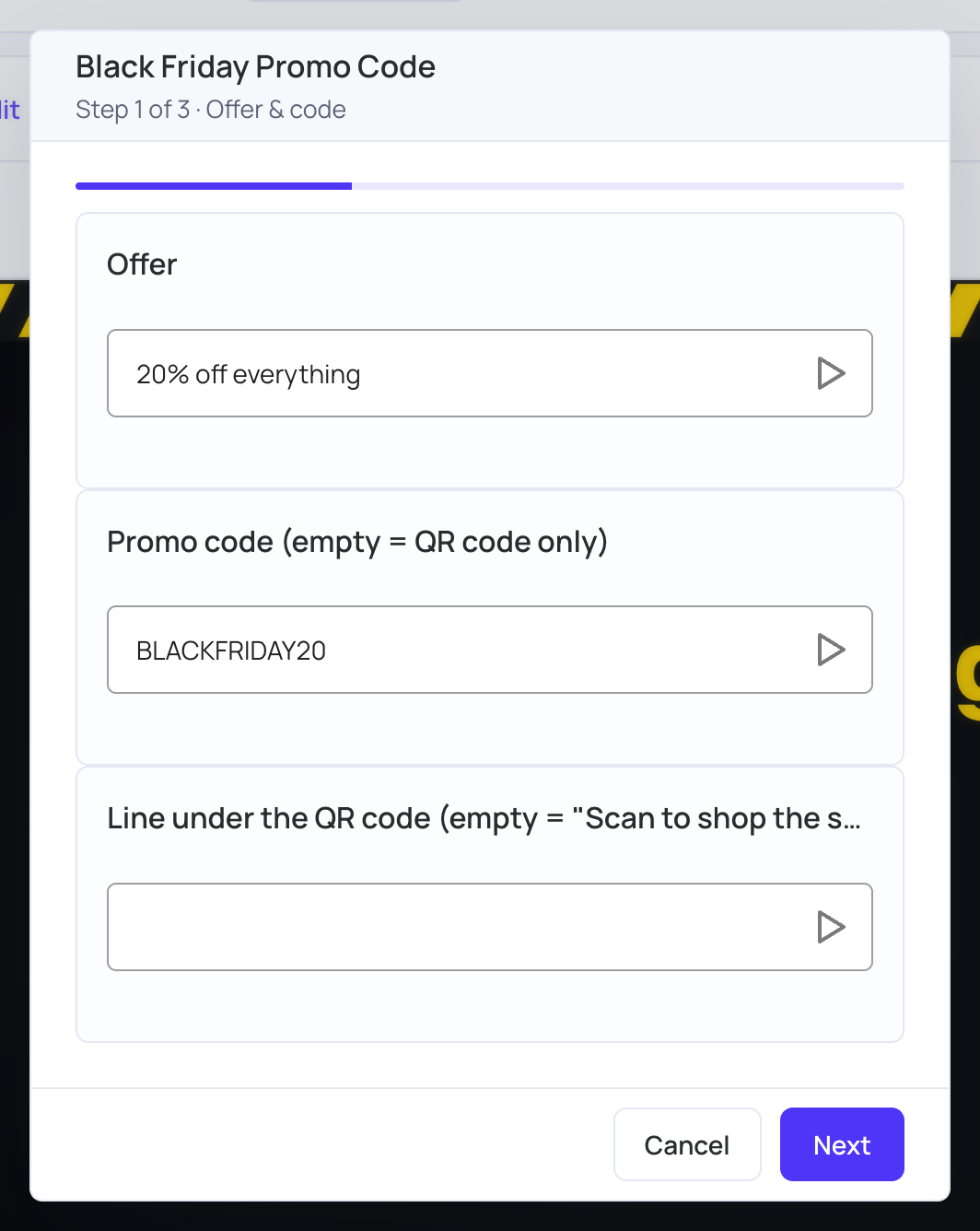
Two tips for promo code ideas that work on a screen: avoid characters that look alike from a distance (0 and O, 1, I and l), and keep the code short enough to remember on the walk to the car. If you only want people to scan, leave the code empty and the app shows the QR code on its own.
Measure which screen drove the visit
On the Link & QR code page, the owner pastes the sale page address into Link the QR code opens and turns on Tag the link with the campaign and the screen name. The app then adds utm_source=easysignage, utm_medium=screen, utm_campaign=black_friday and the screen’s name as utm_content.
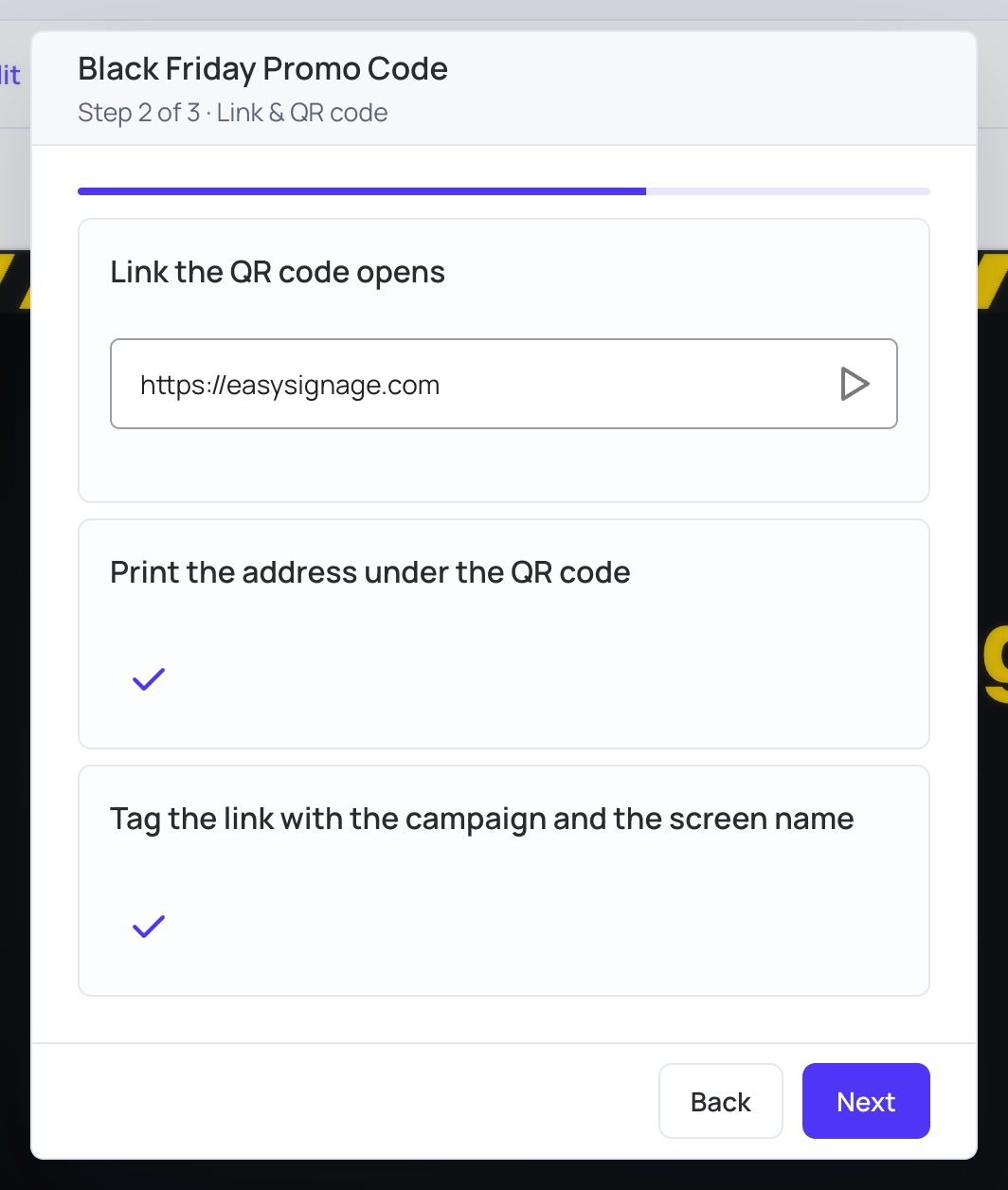
After the weekend, Harbour Home can open its web analytics, filter by campaign black_friday, and see how many visits came from the counter screen compared with any other screen running the same app. That is the closest most small stores get to measuring in-store signage without extra hardware. Turn on Print the address under the QR code too, for anyone without a camera to hand.
If a screen sits behind glass or far from where people stand, raise QR error correction in the advanced settings so the code still scans.
Combine the Apps on One Screen
A store with only one screen can still run all three. Each app has a Layout setting with Full screen, Card, Strip (for a footer or ticker layer) and Badge (a small block for a corner), plus a Transparent background option.
For example, with a split-screen layout you could run the deals board full screen, the countdown as a Strip along the bottom, and the promo code as a Badge in a corner. See Layout Customisation to set up layers. You don’t need to design a separate small version: when the Deals app lands in a narrow layer, it drops the details that would be too small to read.
Schedule the Sale Before You Leave on Thursday
The Deals and Promo Code apps don’t have sale dates of their own. Harbour Home sets Playback times on each playlist item instead: a start date of Friday 27 November at 9:00 and an end date of Monday 30 November at 21:00. Then the owner publishes on Thursday afternoon.
On Friday morning the deals and the promo code appear on their own, and on Monday night they stop playing. The countdown in the window needs no schedule at all, because it already knows the sale times.
Two things to check before the weekend:
- Each screen’s time zone is correct, so scheduled items start on time.
- You have previewed the playlist on the real screen at its real orientation. All three apps work in landscape and portrait.
Black Friday Checklist for Your Screens
| When | What to do |
|---|---|
| 3 weeks before | Add Black Friday Countdown to the window screen. Set the sale times, sale length and offer line. |
| 1 week before | Add Black Friday Deals and Black Friday Promo Code. Type the deals, upload product photos, set the promo code and sale page link, and turn on campaign tagging. |
| The day before | Set playback times on the deals and promo items, preview each screen, and publish. |
| During the sale | Mark sold-out deals and publish. Change prices from the dashboard as stock moves. |
| After the sale | Check analytics for campaign black_friday by screen name. Leave the countdown in place for next year or switch it to Boxing Day. |
Frequently Asked Questions
Do the Black Friday apps need an internet connection on the screen?
No. All three apps run on the screen without an internet connection once the playlist is published. Product photos in the Deals app are packed into the app when you save, so the screen doesn’t download anything else. The screen needs a connection to receive changes like new prices or sold-out deals.
Can I use the countdown for Cyber Monday, Singles’ Day or Boxing Day?
Yes. Set Sale day to Cyber Monday, Singles’ Day (11 November) or Boxing Day (26 December), and the app works out the next date. To count down to any other date, turn on Use my own date on the Custom date page. A date you set yourself is a one-off: when it passes, the countdown won’t roll over to next year.
Can I show prices in my own currency and language?
Yes. In the Deals app, set Currency symbol and Language. Prices show in the number format of the chosen language, and you can type prices as plain numbers such as 449 or 1,299.
Can I use these apps on a video wall?
Not at the moment. Video wall playlists don’t include the Black Friday apps yet, so run them on single screens.
Which EasySignage plan includes the Black Friday apps?
See the pricing page for which apps each plan includes. You can try EasySignage free on your first screen.
Get Your Screens Ready for Black Friday
Black Friday is under two weeks away. Start with the countdown in your window today, then add the deals board and promo code during the week. Each help guide covers every setting:
For more seasonal ideas beyond Black Friday, read How Digital Signage Boosts Holiday and Seasonal Sales, or see how EasySignage handles retail promotions all year round.