Vibe Coding: How to Build a Digital Signage Building Directory with AI
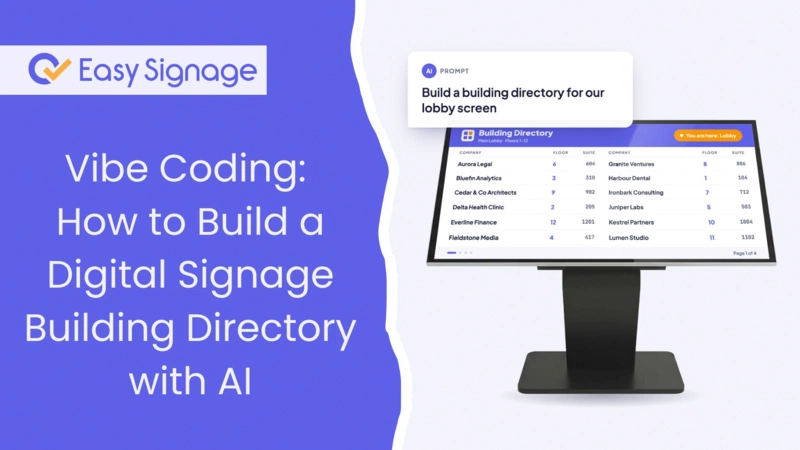
AI vibe coding means describing the software you want in plain language and letting an AI agent write the code for you. You can then test the software and provide feedback to refine it.
We wanted to see how far it goes for digital signage, so we used it to build a complete digital signage building directory: the tenant list you see on lobby screens in office towers, campuses and medical centres.
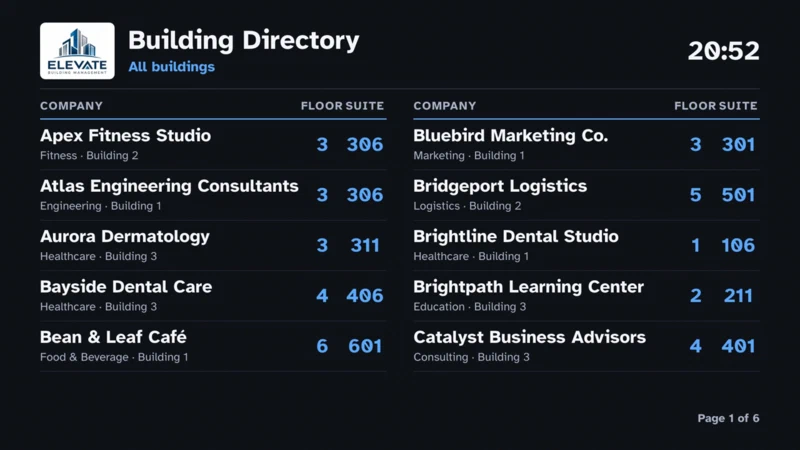
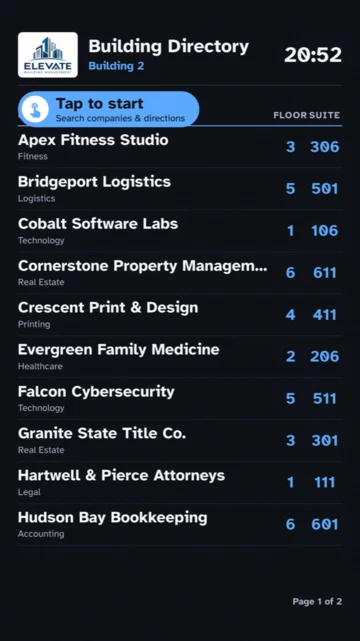
The result is a free AI custom app for EasySignage. It organizes companies by floor and suite, shows only the buildings each screen is tagged with, and turns into a searchable kiosk on touchscreens . It took one working session, taking the project from an empty folder to a fully functional app running on real screens, and we didn’t write any of the code by hand.
This post shows what we built, describes how the AI vibe coding process went, what the real screens taught us, and how to use the app or build your own version.
Watch the full six-minute session, from an empty folder to the app running on real lobby screens:
What is a digital signage building directory?
A building directory is the list of tenants in a building, along with the floor and suite where each one sits. Traditionally, this information is presented on a board of printed or engraved name strips in the lobby. However, a digital building directory shows the same list on a screen instead, which brings a few practical advantages:
Updates in minutes: When a tenant moves in or out, you change one spreadsheet instead of ordering new name strips.
Several buildings, one system: A campus or business park can show each lobby its own building, while the main entrance can show all of them.
Search on touchscreens: Visitors can type a company name and get the floor, suite and directions, instead of scanning a long list.
Space for more information: Phone numbers, opening hours, websites and descriptions can all fit on a details page.
Your branding: Your logo, colours and title, consistent across every screen.
If you are new to the idea of smart screens, “What Is AI Digital Signage” covers the wider picture.
What we built
The app is an EasySignage custom app
: a small offline web app packaged as a .zip, uploaded once, and played on every screen like any other media.
Here’s what it does:
| Feature | How it works |
|---|---|
| Per-screen buildings | Tag a screen building1, building2, or several, and it lists only those buildings. Tag it all for every tenant. |
| Auto-paging list | Companies sorted A–Z with floor and suite, paging every 10 seconds with a "Page 2 of 4" indicator. |
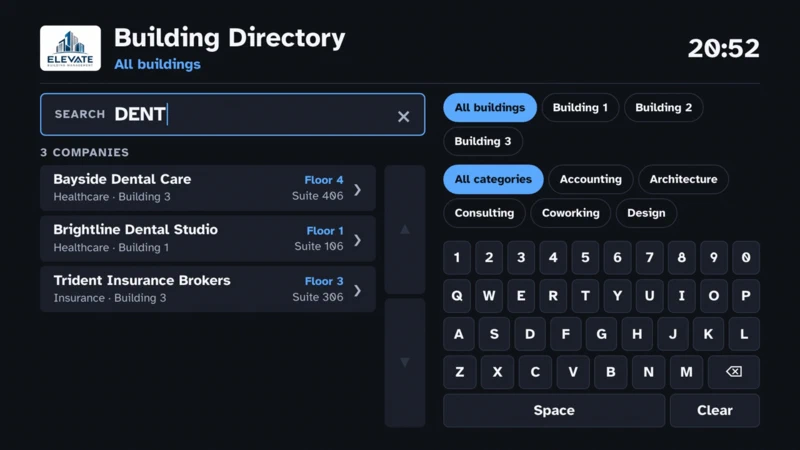
| Touchscreen kiosk | Add the touchscreen tag and a "Tap to start" badge appears. A tap opens search with a built-in keyboard and filters. |
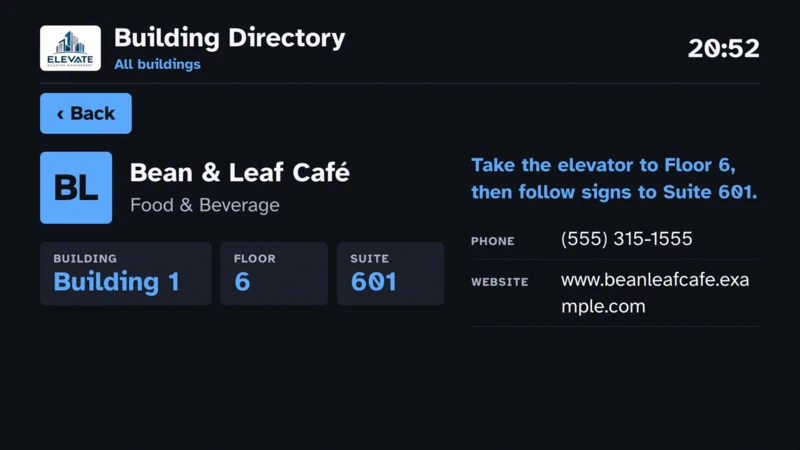
| Company details | Floor, suite, "Take the elevator to Floor 6" directions, phone, website and hours. |
| Landscape and portrait | Two columns on landscape screens, one on portrait, detected automatically. |
| Spreadsheet data | Listings live in an Excel file, one sheet per building. |
| Works offline | Everything is stored on the screen, so the directory keeps showing if the internet drops. |
On a touchscreen, visitors search with the built-in keyboard and filters:
Tapping a company opens its details, with directions to the right floor and suite:
How AI vibe coding works for digital signage
Vibe coding works best when the AI already knows the rules of the platform it’s building for. Signage screens aren’t laptops. Many run older built-in browsers on Samsung Tizen, LG webOS and BrightSign players, play content offline, and run for days without a restart. An app that looks perfect in your browser can show a black screen on a real player.
That’s why we started from our free, open-source Digital Signage Custom Apps toolkit . It gives the AI agent the rules for EasySignage custom apps, a signage design theme with large readable text, and the script that reads each screen’s name and tags. For the full setup with Claude Code, ChatGPT, Cursor or Copilot, see How to Build a Custom Digital Signage App with AI .
The loop itself is simple:
- Describe the screen you want.
- Answer the AI’s questions about the details you didn’t think of.
- Preview the app in your browser.
- Test it on a real screen and describe what’s wrong.
- Repeat until it’s right, then package and upload.
How we vibe-coded the building directory, step by step
We used Claude Code and pointed it at the custom apps toolkit on GitHub, so it followed the toolkit’s rules and starter app. Here’s how the session went.
Step 1: Generate sample data
We started by asking the AI for an Excel file of made-up companies, the kind you’d see in a business directory, with one sheet per building: building1, building2 and building3. Each company got a floor, suite, category, phone and website. The sheet names later became the screen tags, which keeps the setup simple: the tag on a screen matches the sheet it shows.
Step 2: Describe the app and let the AI ask questions
Our first request was two sentences: read the screen’s tags to pick one or more buildings, and on screens tagged touchscreen, add search and a details page for each company. We also told the AI to ask us questions before building anything.
It came back with four questions that would have caused rework later:
- How should a screen name its buildings? A tag per building, or one tag listing several?
- Where does the data live? Bundled into the app, or loaded live from a URL?
- What if the list doesn’t fit on screen? Paging, scrolling, or smaller text?
- How do people type on a kiosk? Most signage players have no keyboard, so it suggested a built-in on-screen keyboard.
Step 3: Write the specs down
Before writing code, we had the AI write a detailed README covering the tags, the spreadsheet columns, how display screens page, how touch mode behaves, and how to package the app. It also wrote a build prompt, so anyone can recreate the app from scratch. This README became the contract the AI built against.
Step 4: Build, preview, and refine
The AI built the app, generated the data file from the spreadsheet, and checked it against the toolkit’s rules. It previewed it in a browser at landscape and portrait sizes, tested search and the details page by tapping through them, and packaged the .zip.
From there, the vibe coding was conversational: “Use this logo as the building management logo”, “The Tap To Start badge should float near the top-left corner”, “Improve it so it looks good”, “No shade, keep it flat”. Each request took one message and a minute or two.
Step 5: Test on real screens
This is where AI vibe coding for digital signage differs from vibe coding a website. We uploaded the app to real screens, and they found problems a browser preview couldn’t:
A portrait screen reported a landscape resolution. The screen was mounted vertically, but the player told the app it was 1920×1080, so the AI’s first version squeezed two columns into a narrow screen. The fix: detect the orientation from the real screen size instead.
Tags didn’t arrive the way we expected. Screens showed every building instead of their own. Rather than guess, we asked the AI to show a small diagnostic line on screen listing the tags the screen actually received. That one change made the problem visible straight away.
A blank screen on one player. With no console to read on a signage player, we had the AI print any script error directly on screen, so a blank screen becomes a readable message.
Each fix started with a photo of the screen and one sentence describing the problem. That’s the real lesson: AI writes the code quickly, but real hardware is still the final test.
Copy the prompt
The full build prompt is in the project README on GitHub . It’s long because it captures every decision from the session. To start your own version, a short prompt works with the EasySignage custom app skill installed:
Change the details to match your building: add columns like opening hours or email, use your own wording, or add a floor map image to the details page.
Use the building directory app on your screens
You don’t have to build anything to use it. The app is free and open source:
Download building-directory.zip . It includes sample data and a sample logo.
Upload it to the EasySignage Management Console , add it to a playlist, and assign the playlist to your screens. See how to upload media .
Tag each screen with the buildings it should show. See how to tag screens .
| This screen should show | Tags to add |
|---|---|
| Only Building 1 | building1 |
| Buildings 1 and 3 | building1 and building3 |
| Every building | all |
| Building 2 on a touchscreen kiosk | building2 and touchscreen |
To use your own tenants and logo, edit the spreadsheet and logo in the GitHub repository and rebuild the zip, or hand the repository to your AI agent and ask it to make the changes. The README covers every setting, plus a troubleshooting guide.
Where a digital building directory fits
Office towers and business parks: A directory in each lobby, plus a combined one at the main entrance.
Coworking spaces: Member companies change often, and a spreadsheet update keeps the screens current.
Hospitals and medical centres: Clinics and departments by floor, with search on a touchscreen kiosk. See digital signage for healthcare .
Universities and schools: Departments and offices across several buildings. See digital signage for education .
Shopping centres: Store listings by level, next to the escalators.
If you would rather build a touch directory without code or AI, the Interactive Kiosk App gives you a drag-and-drop editor, and EasySignage’s touchscreen features cover screensavers and tap-to-start for any playlist.
Tips for AI vibe coding your own digital signage app
Start from the signage rules: Give the AI the custom app toolkit so it writes code that runs on older players and offline.
Ask the AI to question you first: A few questions up front save several rounds of changes.
Keep the specs in a file: A README the AI updates as you go keeps long sessions on track and documents the app for whoever maintains it next.
Make problems visible on screen: Signage players have no console. On-screen diagnostics turn “it doesn’t work” into a message you can act on.
Test on every screen model you own: A browser preview is a good first check, but each player behaves a little differently.
Keep secrets out: Never ask the AI to put API keys or passwords into an app. It’s copied to every screen.
Build your own AI digital signage app
AI vibe coding turned a building directory, an app that would normally take a developer days, into a single conversation. Download the free building directory , or use the custom apps toolkit to build your own idea. Custom apps run on the EasySignage Premium and Enterprise plans; see pricing .
Frequently asked questions
What is AI vibe coding?
AI vibe coding is building software by describing what you want to an AI agent in plain language, then testing the result and giving feedback until it works. The AI writes the code; you decide what it should do and check that it does.
Can I build a digital signage app without knowing how to code?
Yes. We’ve built this building directory without writing code by hand. You need to describe the screen, answer the AI’s questions, test the result, and upload a zip to EasySignage. A coding agent such as Claude Code can do the packaging for you.
Is the digital signage building directory app free?
Yes. The app and the custom apps toolkit are free and open source on GitHub. Playing custom apps on your screens requires an EasySignage Premium or Enterprise plan.
Does the building directory work on touchscreens?
Yes. Add the touchscreen tag to a screen and it shows a “Tap to start” badge. A tap opens search with a built-in on-screen keyboard, building and category filters, and a details page for each company. Screens without the tag ignore taps.
How do I update the companies in the directory?
Edit the Excel file, one sheet per building, then rebuild the zip and upload it in place of the old one. You can also ask your AI agent to make the changes for you.
Does it work without internet?
Yes. Everything, including the company list, is stored on the screen, so the directory keeps showing during an internet outage.
Can one app show different buildings on different screens?
Yes. Each screen sends its tags to the app. Tag a lobby screen building1 and it shows Building 1; tag the main entrance screen all and it shows every building.