Screen Tools
7 test apps for installing and checking digital signage screens. Test colours, pixels, motion, overscan and touch, map an LED wall, and read a screen's player details.

About This App
Screen Tools are seven apps for testing digital signage screens. You add one to a playlist like any other app, and the screen shows a test pattern or its own details. Installers use them to set up a new screen or LED wall, and support teams use them to find out whether a problem is in the screen or in the content.
Every app runs on the screen without an internet connection, in landscape and portrait, and in any layer size. You’ll find them under Screen tools when you add an app to a playlist. They aren’t offered in video wall playlists. Remove the app from the playlist when you finish testing, so a test pattern doesn’t stay on the screen for hours.
The Seven Apps

LED Calibrate
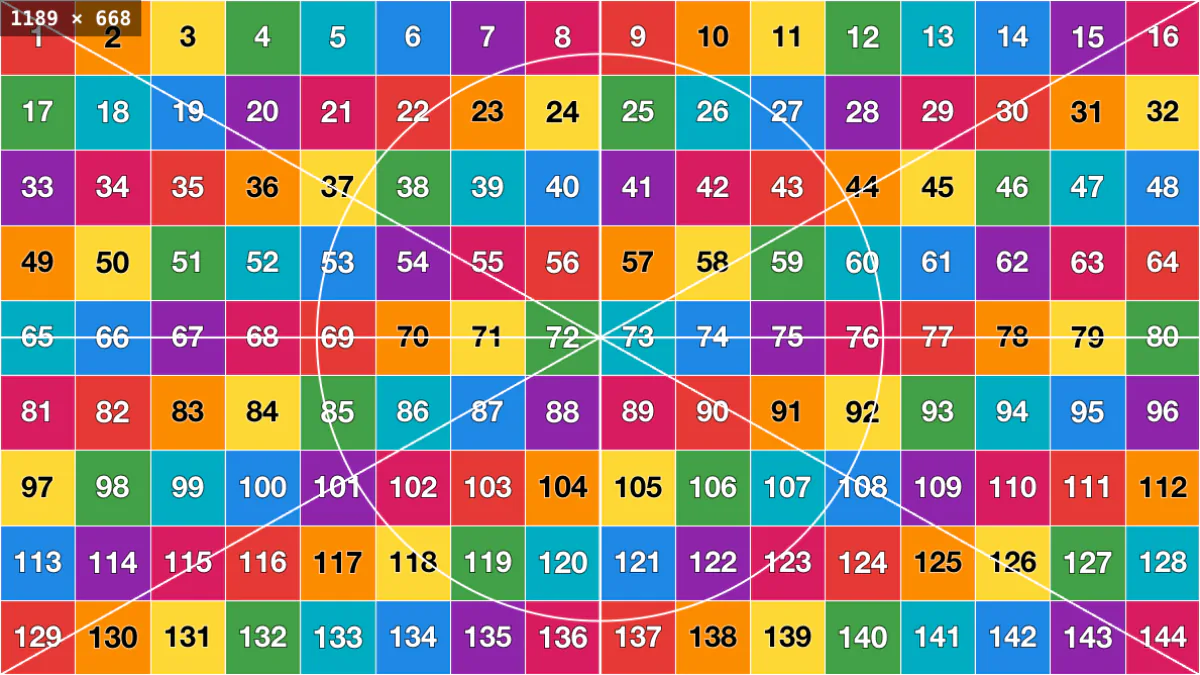
Shows a numbered, coloured cell for each cabinet on an LED wall, so a cabinet in the wrong place stands out.
Match the grid to your wall and check cabinet order and seams. See the LED digital signage guide.
LED Calibrate help page
Colour Test
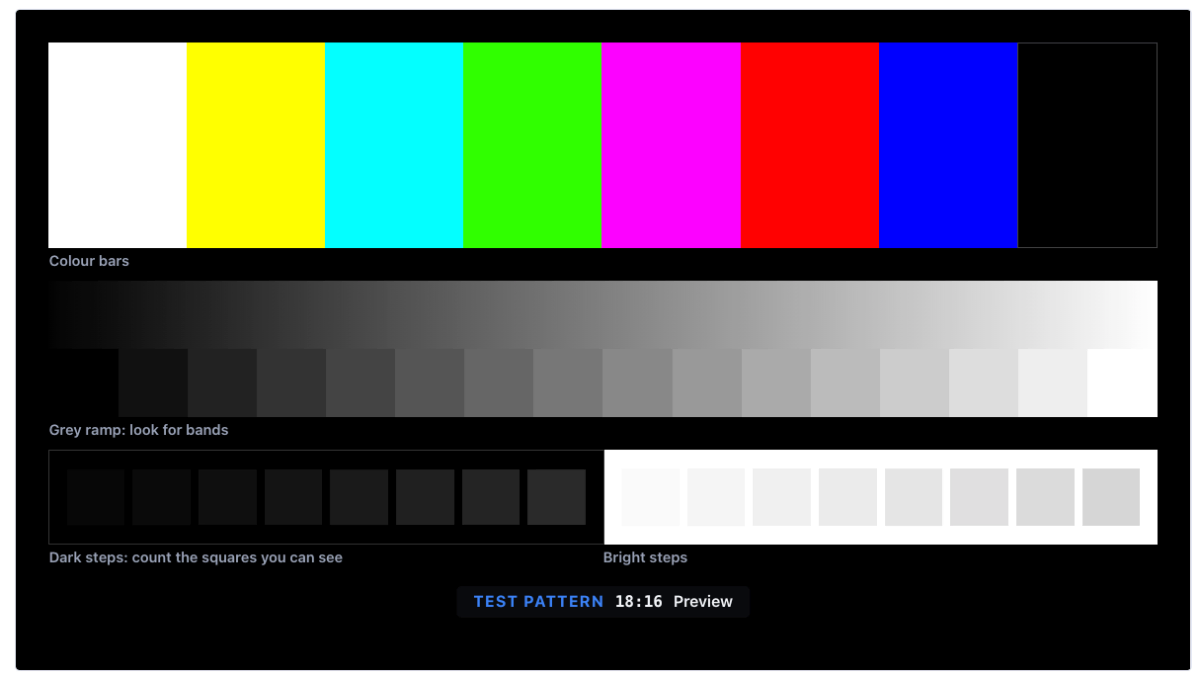
Shows eight colour bars, a smooth and a stepped grey ramp, and rows of dark and bright grey steps.
Adjust the screen's brightness, contrast and picture mode until you can see every step, and compare screens that sit side by side.
Colour Test help page
Pixel Test
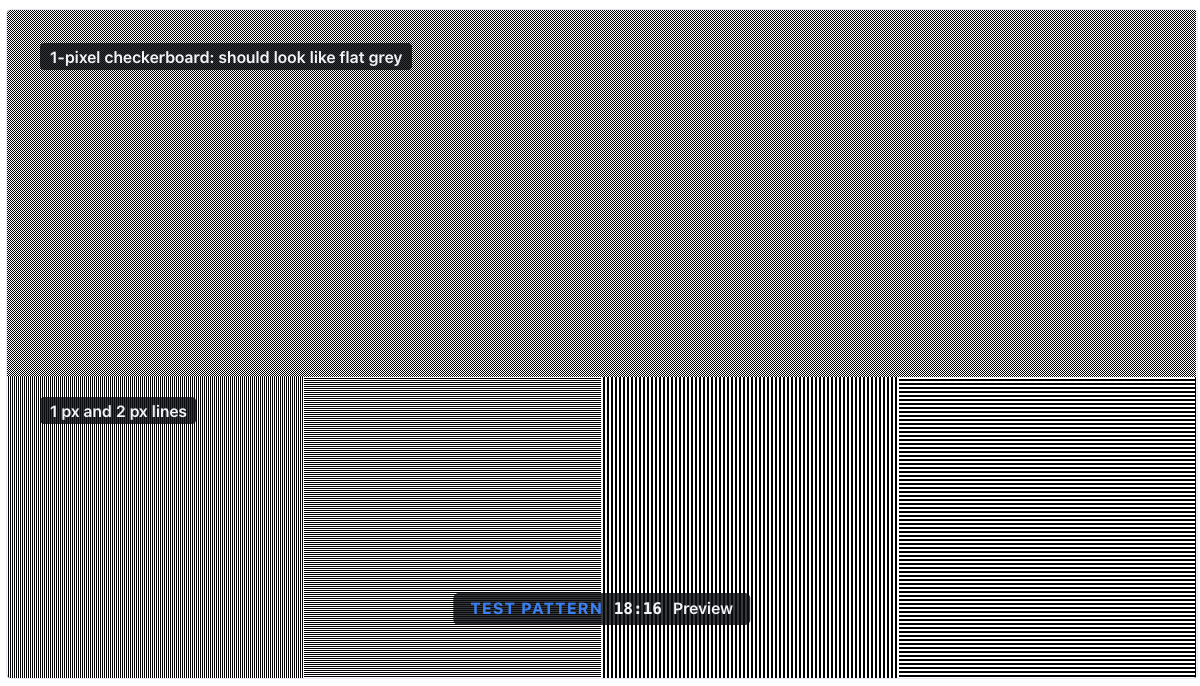
Shows a 1-pixel checkerboard and bands of 1-pixel and 2-pixel lines. If the lines look grey or blurred, the screen or the player is scaling the picture.
Check that the player's output resolution matches the screen's own, and turn off overscan, zoom and sharpness until the lines are sharp.
Pixel Test help page
Safe Area Test
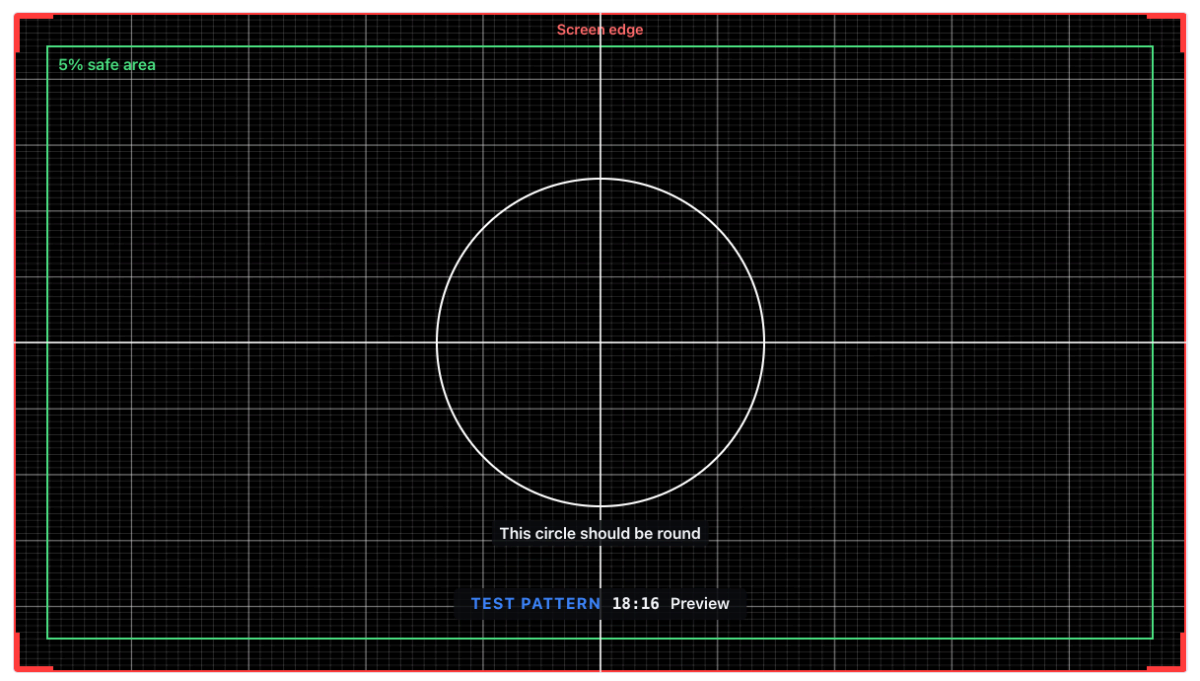
Shows red corners at the very edge of the picture, the safe area frame, a grid and a circle in the centre.
Many TVs crop the edges by default. If a red corner is missing, change the TV's picture size or overscan setting. If the circle isn't round, the picture is stretched.
Safe Area Test help page
Motion Test
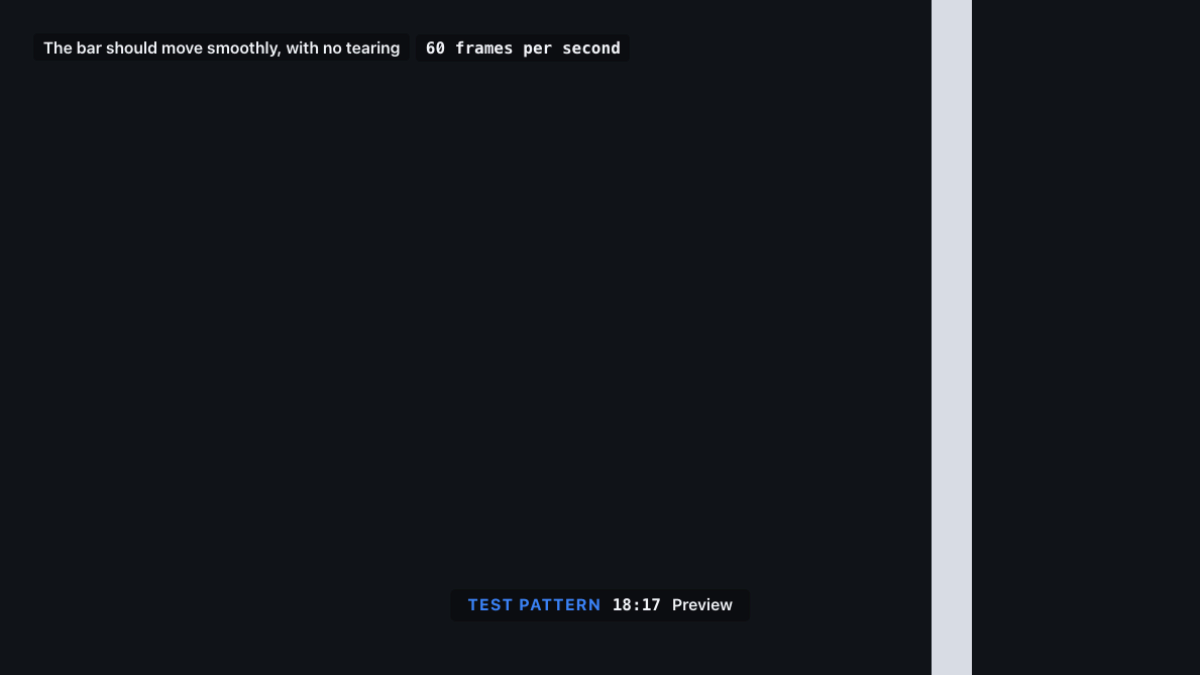
Moves a light bar across the screen every four seconds and shows the frame rate the screen reaches. Nothing on the screen flashes.
Run it before you add tickers, scrolling text or animated apps, or compare players to see which plays movement most smoothly.
Motion Test help page
Touch Test
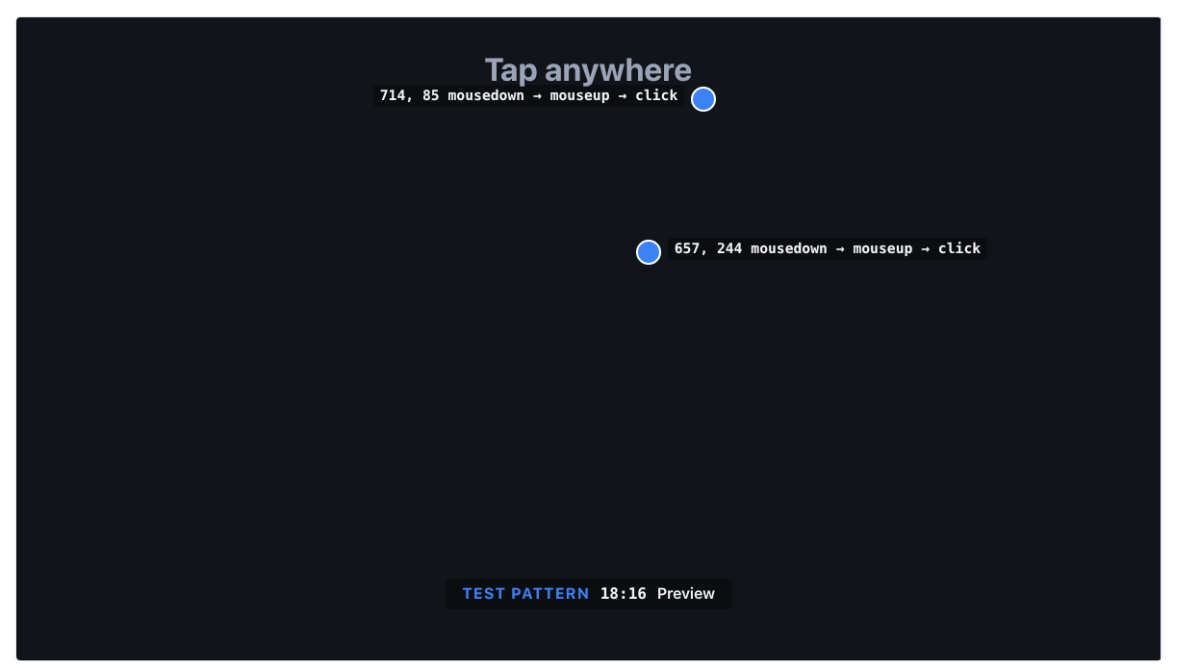
Leaves a dot wherever the screen detects a tap, with its position and the events that reached the app. It warns when one tap reaches apps twice.
Use it when you set up a touch screen or kiosk, and tap the corners and edges as well as the centre.
Touch Test help page
Player Info
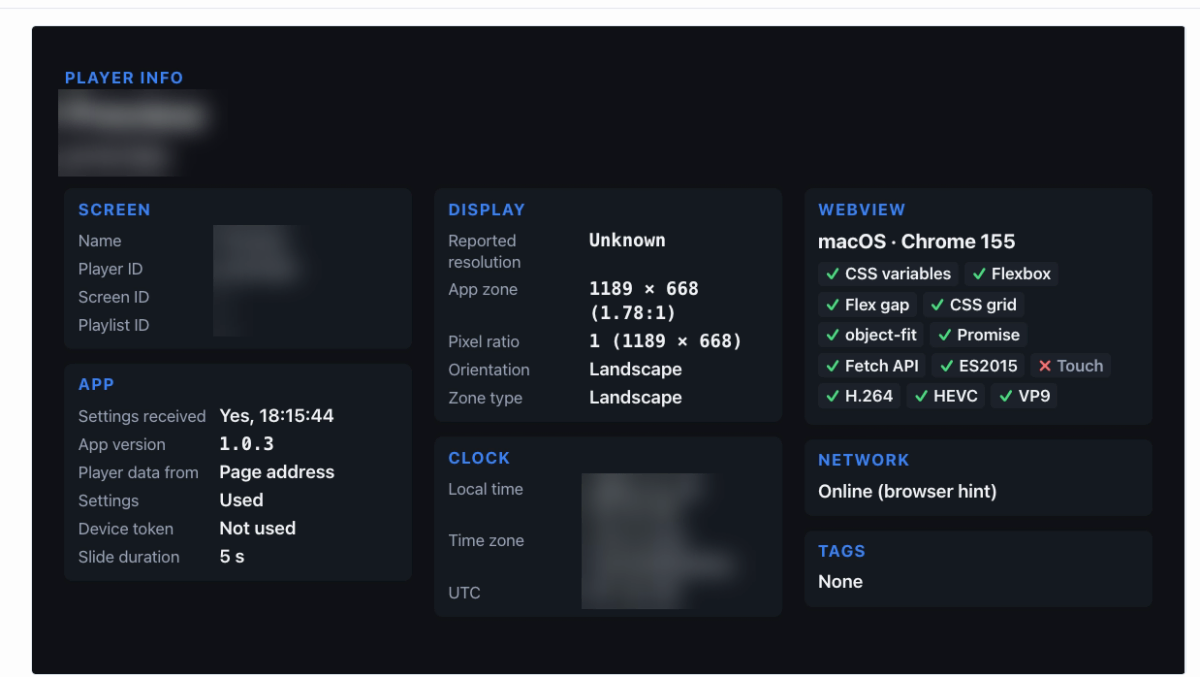
Shows what a screen tells apps about itself: its name, player ID, resolution, the real size of its layer, the web browser version and the clock.
Read the IDs from the screen when you contact support. It never shows the device token, and it shows the location only if you turn that on.
Player Info help pageKey Features
Seven test apps in the Screen tools category of the CMS app picker
Map LED wall cabinets with a numbered, coloured calibration grid
Check colours, black level and banding with colour bars and grey steps
Check scaling and sharpness with a 1-pixel checkerboard
Find cropped edges, overscan and stretched pictures
Check touch accuracy and taps that register twice
Run on the screen without an internet connection, in landscape or portrait
Need help setting up?
Follow the step-by-step setup guide to get started quickly.