Google Slides
Integrate Google Slides with EasySignage to display dynamic content in real-time on multiple screens. Perfect for businesses, schools, and organizations to streamline promotions, updates, and announcements.
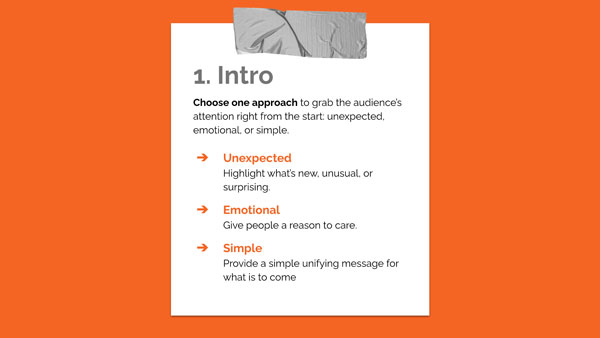
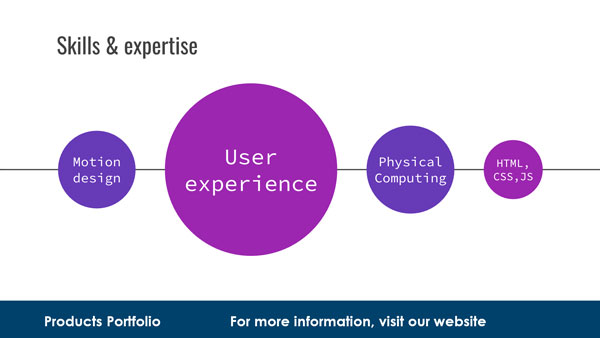
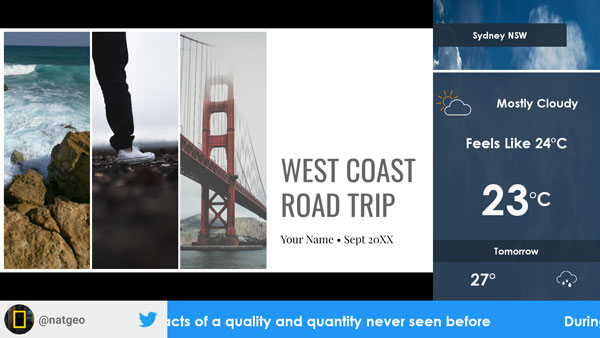

About This App
Google Slides can be seamlessly integrated with EasySignage, making it a highly effective tool for creating, managing, and displaying dynamic digital signage content. This integration allows users to harness the familiar interface and features of Google Slides while taking advantage of EasySignage’s powerful capabilities to broadcast content across multiple screens in real time. Whether you’re running digital signage on TV displays, kiosks, or any other connected device, this combination provides a flexible and scalable solution for all your visual communication needs.
The integration process between Google Slides and EasySignage is designed to be straightforward and user-friendly, enabling users of all skill levels, whether tech-savvy or not, to get started without complications. Simply create your slideshow in Google Slides, and with a few clicks, it can be published and updated remotely via EasySignage.
This powerful combination is ideal for businesses, schools, retail stores, and organizations of all kinds that want to create eye-catching and engaging digital signage content. With the flexibility of Google Slides and the ease of use of EasySignage, users can display real-time information, promotions, and announcements that will captivate their audience. Enhance your signage strategy today by utilizing the best of both platforms!
Key Features
Display any Google Slides presentation directly on your digital signage screens
Updates made in Google Slides reflect on screens automatically
Design slides using Google Slides' familiar drag-and-drop interface
Control slide timing and transitions to suit your display environment
Works with any publicly shared or organisation-shared Google Slides presentation
Display fullscreen or alongside other content in a multi-zone layout
Need help setting up?
Follow the step-by-step setup guide to get started quickly.